Shortcut dock
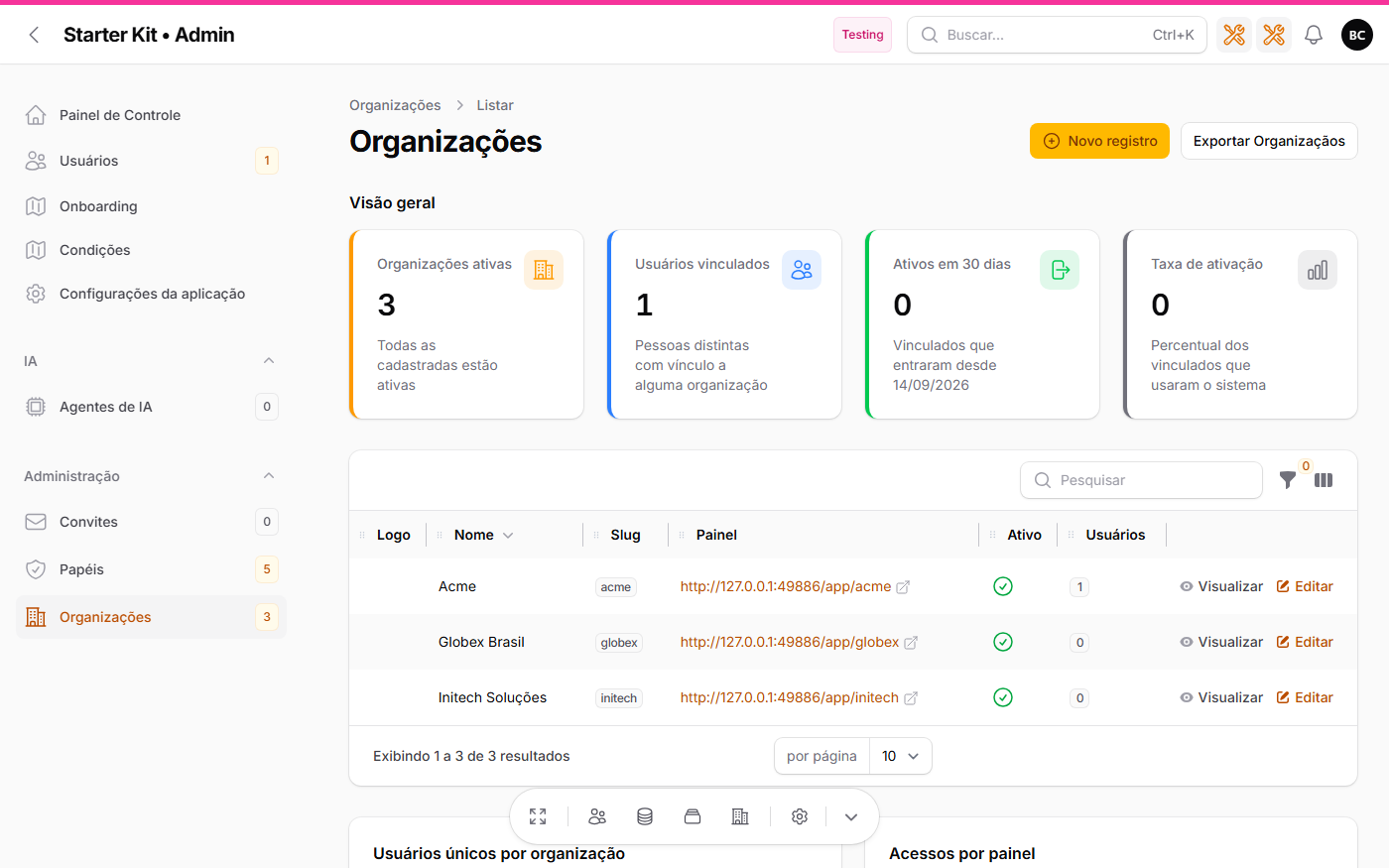
The dock is a floating button with each user’s favourite shortcuts: links to screens of the
application, from any panel, one click away (hoceineel/filament-quick-action-dock). It is built in
App\Filament\Dock\PluginDoDock.
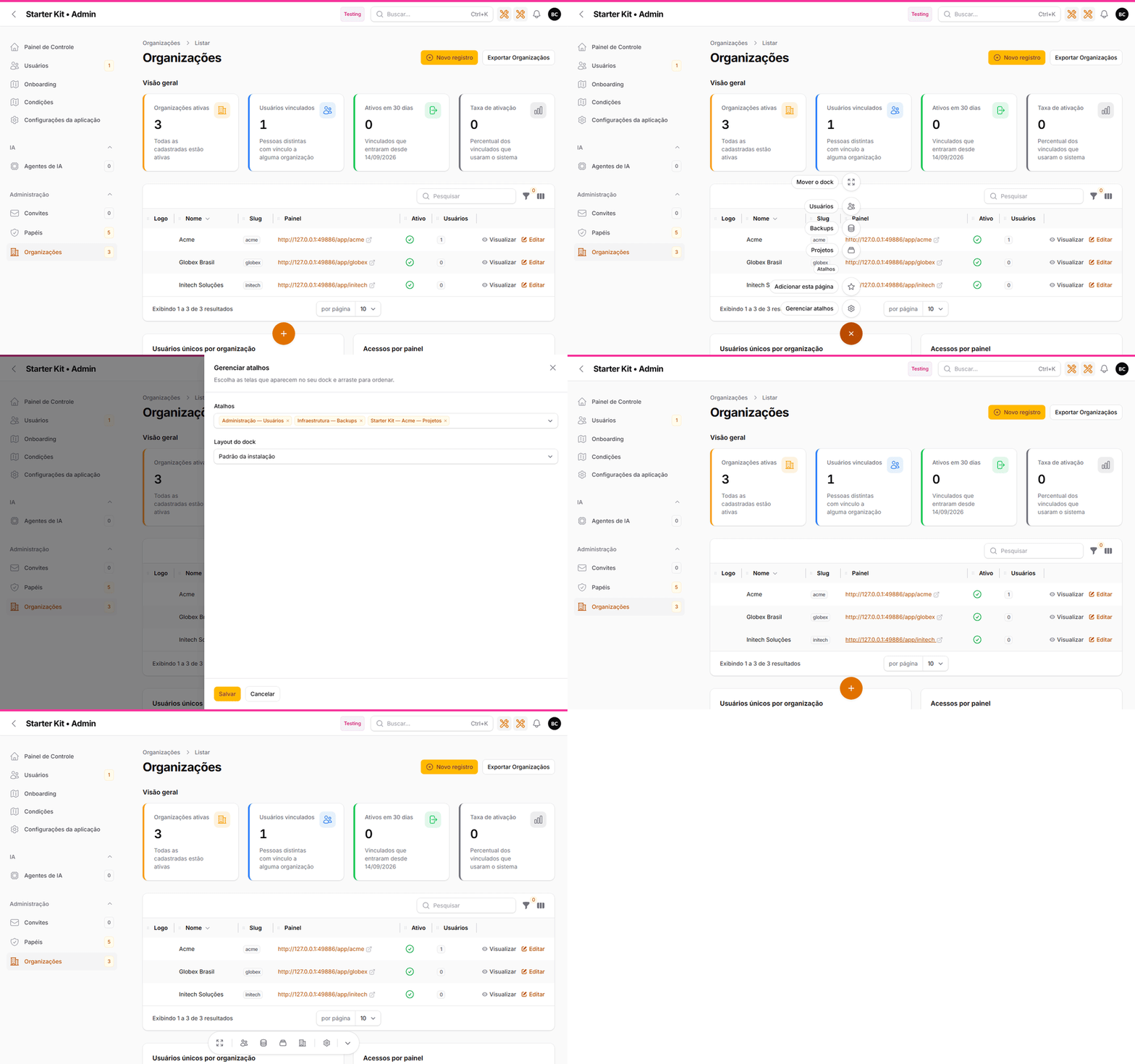
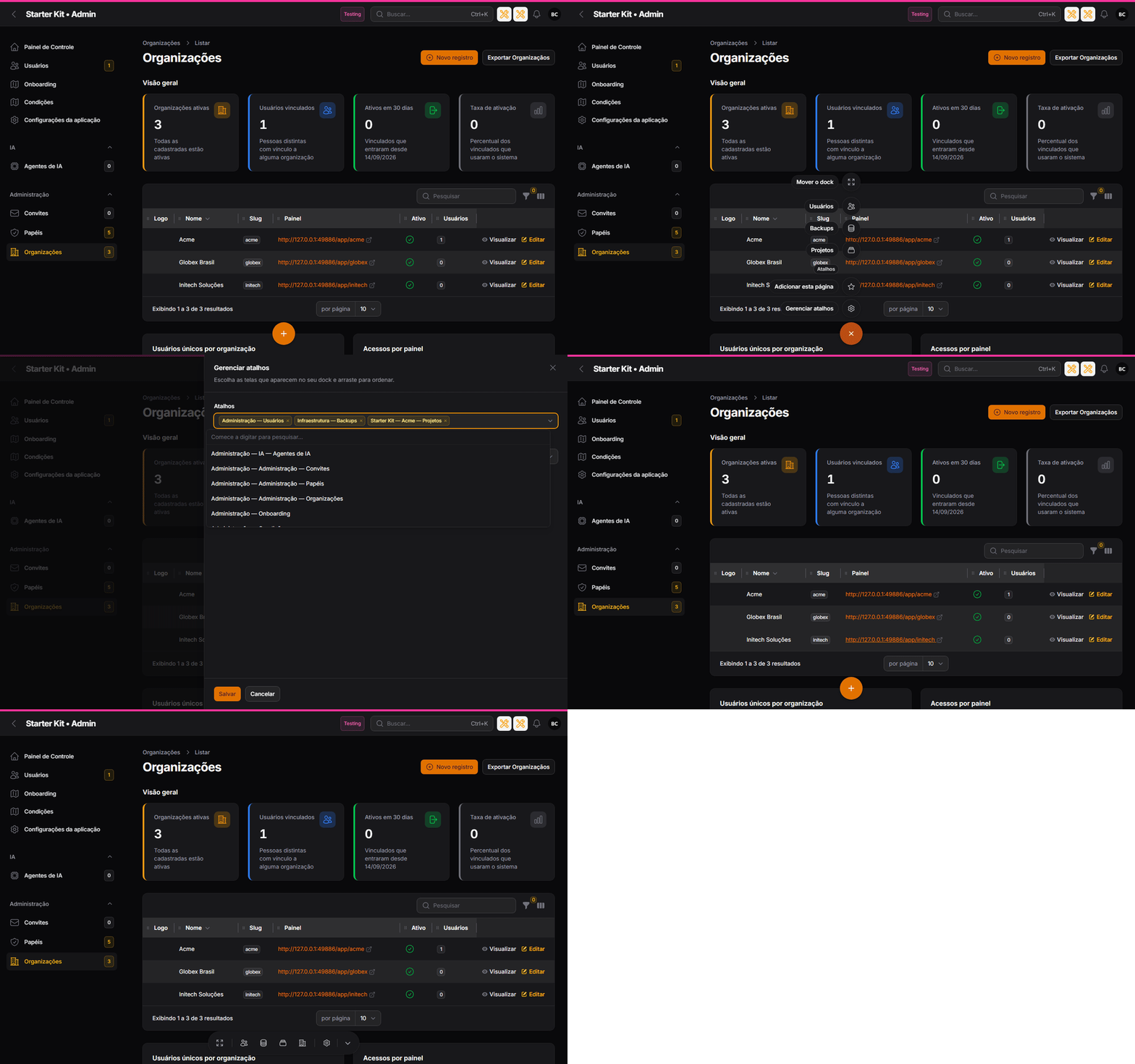
The same animation in dark theme
Who it is for
Only users with the Usar:Dock permission, granted to roles on the roles screen. Without it the
dock does not render. On a new installation the administration roles of the three panels get
it and panel_user does not — an administrator grants it from the roles screen.
Where it shows up
On the panels ticked in Panels where the dock appears, in the Aplicação tab of
/admin/configuracoes-da-aplicacao. On a new installation no panel is ticked: the dock shows up
nowhere until someone turns it on. See the options in Configuration.
The dock and the assistant chat do not show up on the lock screen (/screen/lock), on the login
screens (each panel’s and the unified one, including the panel choice) or on the screens that use
the Auth Designer layout (password recovery, sign-up, invitation registration, two-factor): in a
locked session they would hand the favourites and the conversation titles to whoever is in front of
the screen. Once unlocked, both come back.
Using the dock
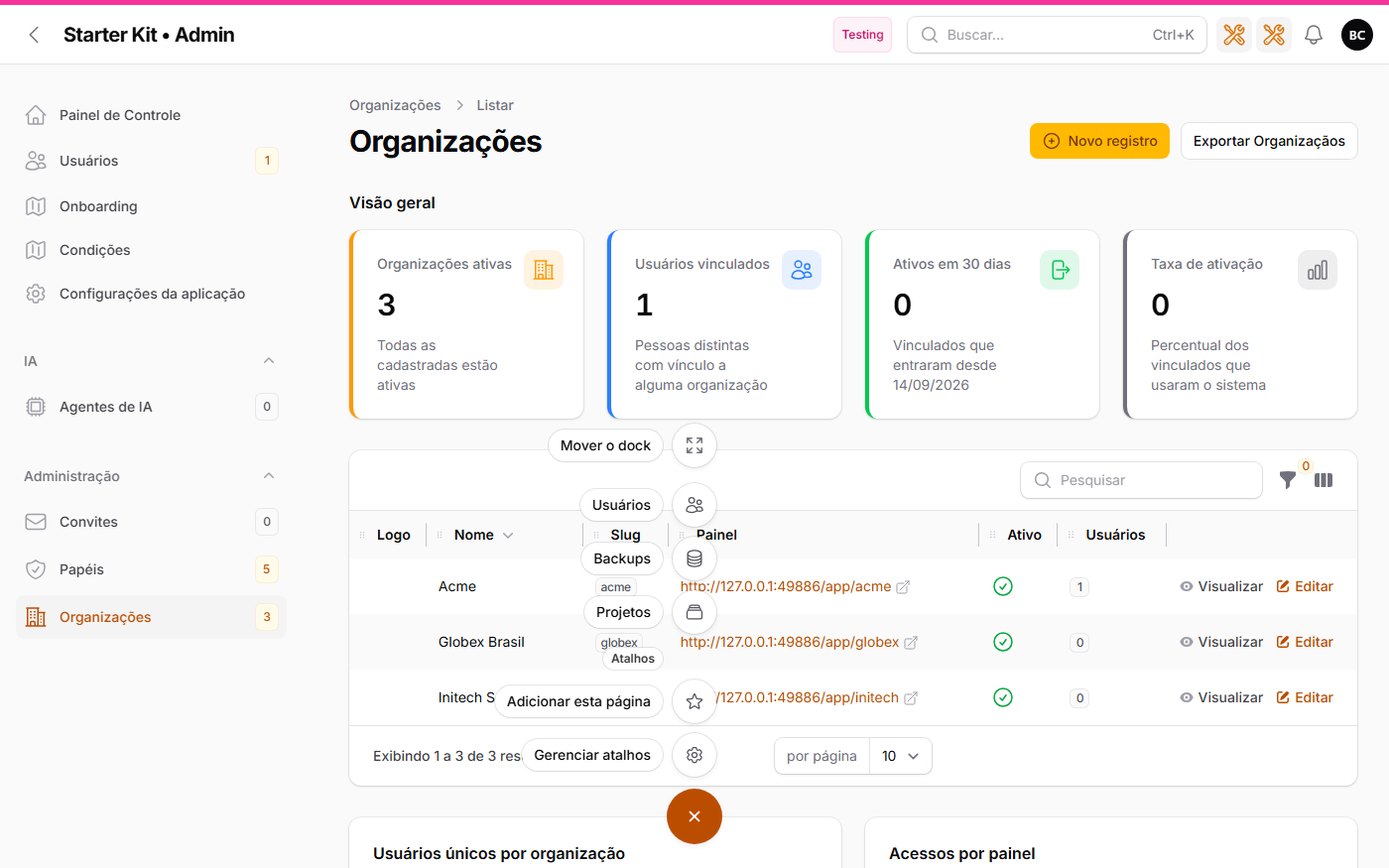
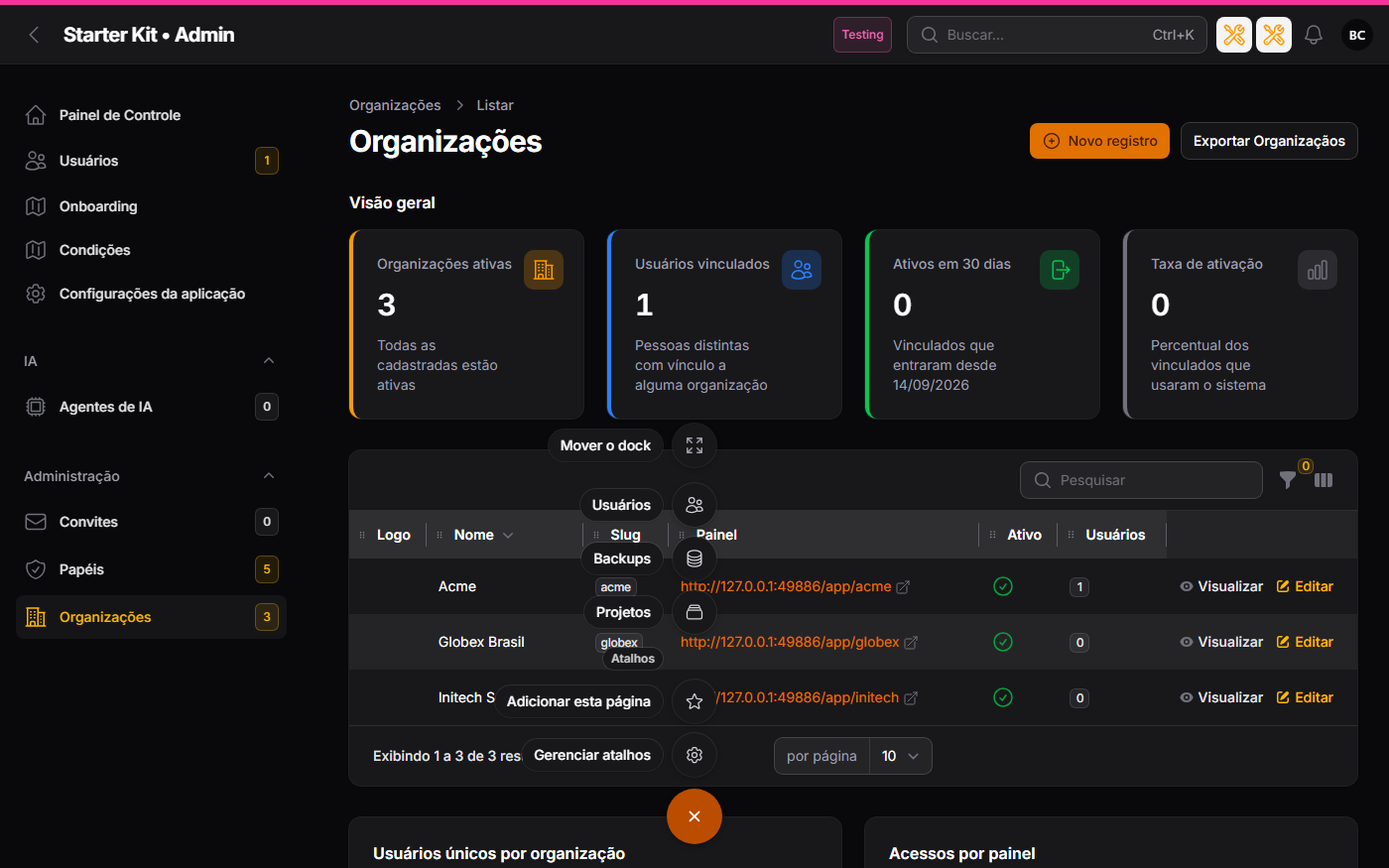
- Click the floating button: the shortcuts open grouped by panel, each group with the panel name as a separator, and in the order you chose within each group. With multi-tenancy on, the application panel’s favourites form one group per organization, with the separator “{panel} · {organization}” — even when there is only one organization —, in the order each organization first appears among your favourites.
- Hover over a favourite to see, in its tooltip, the path it leads to.
- Click a favourite to go to its screen.
| Layout | How it looks |
|---|---|
| Speed dial | the shortcuts fan out from the button |
| Bar | the shortcuts sit in a bar |
| Light theme | Dark theme |
|---|---|
 |
 |
Managing shortcuts
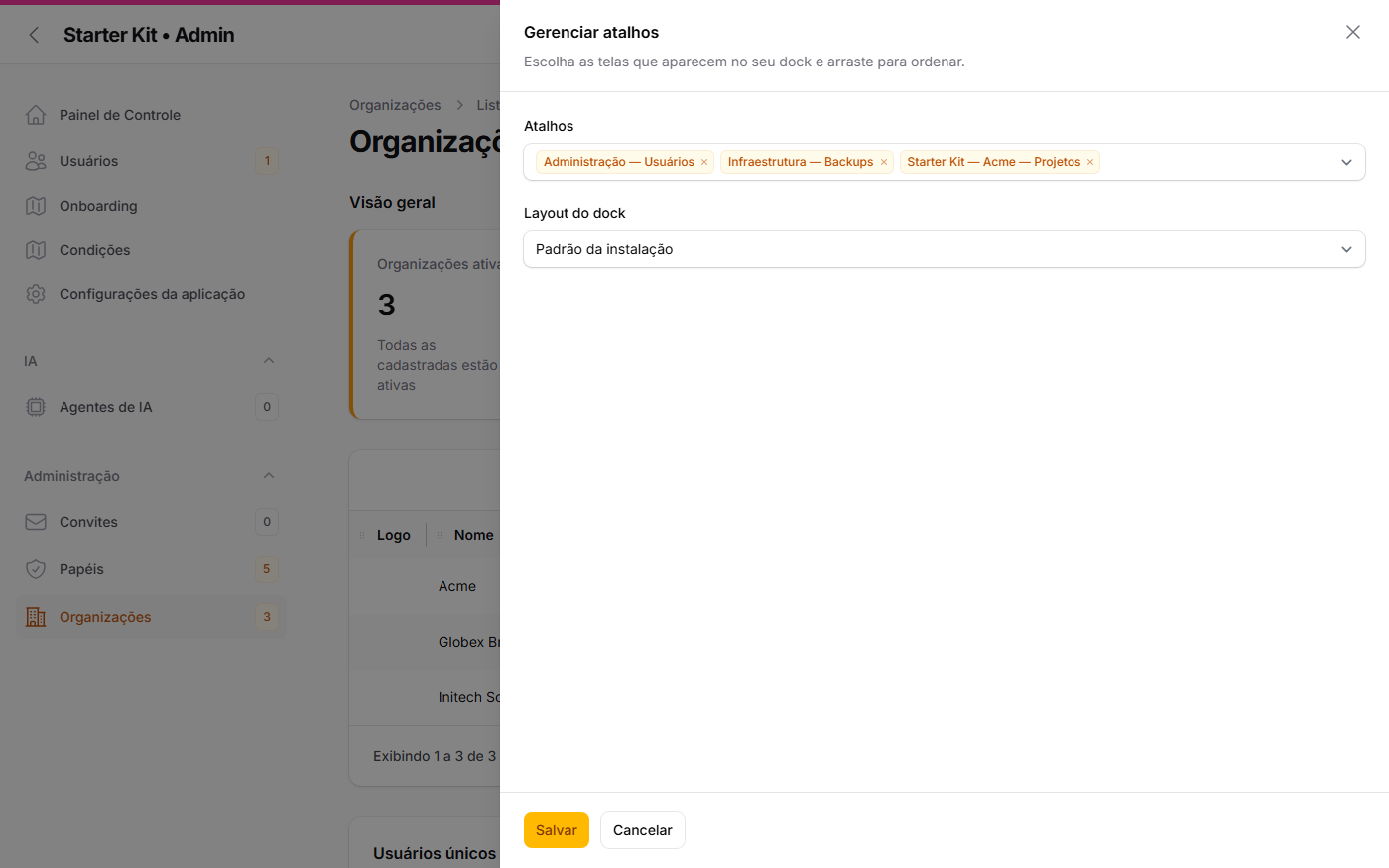
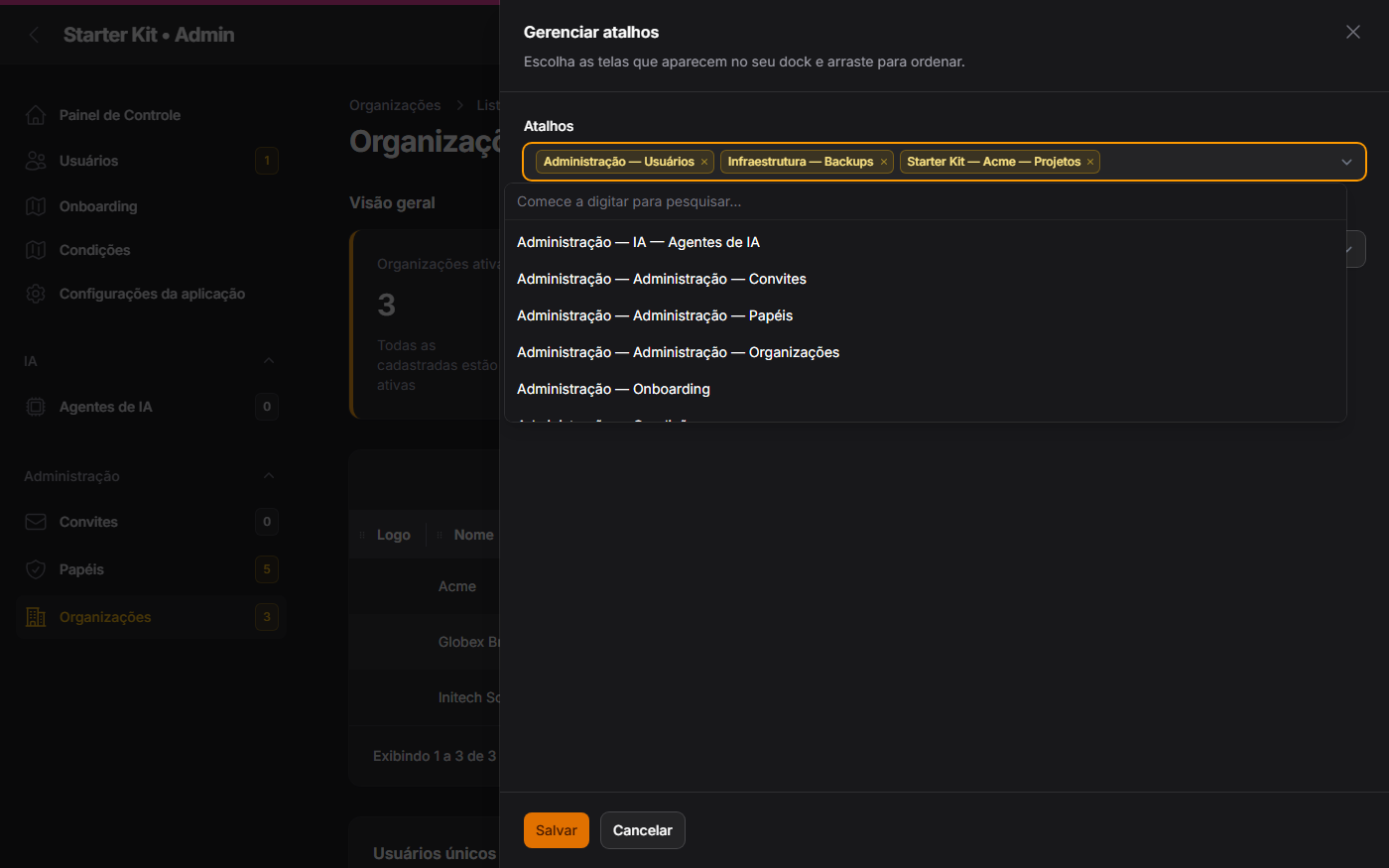
The Manage shortcuts option of the dock opens a slideover. In it the user:
- picks destinations from the catalogue — the screens they can open, generated by itself, with no hand-kept list;
- reorders the chosen ones: their order holds within each panel’s group in the dock;
- removes the ones they no longer want;
- changes the dock layout, for themselves only.
Each destination carries the panel — and, in the organisation panel, the organisation — before the group and the screen, to tell same-named screens apart.
| Rule | What happens |
|---|---|
| Limit of 10 | with 10 saved, sending more is refused with a notice about the limit and nothing changes |
| No duplicates | the same destination cannot be added twice |
| Invalid submission | a submission with a key outside the catalogue is refused as a whole, saving nothing |
| Destinations only | a favourite is always a catalogue destination — the list page of a Resource or a standalone Page —, never a typed URL |
| Light theme | Dark theme |
|---|---|
 |
 |
Add this page
The dock’s other option favourites the screen the user is on.
- Where it shows: on a Resource’s list page or on a standalone Page. On a create, edit or view record screen it does not show.
- Where it does not: when the page is already a favourite.
- Where it goes: to the end of the list (and, in the dock, to the end of its panel’s group), without changing the order of the others.
- When it cannot: if the page can no longer be added — for instance, with 10 saved —, clicking shows a notice instead of doing nothing.
Favourites across panels and organisations
- A panel’s favourite appears in the dock of any panel where the dock is on, as long as the user can still access that panel and that screen.
- An organisation-panel favourite stores the organisation: it opens in it and disappears from the dock if the user loses access to it.
- In the organisation panel, the new screens offered in the catalogue are only those of the open organisation.
- In any panel, already-saved favourites the user can still open show among the chosen ones in the slideover, with the panel and organisation label, and can be removed or reordered.
Lost access. If the user loses access to the destination (permission, panel or link to the organisation), the favourite — a hidden favourite — disappears from the dock and the slideover but stays saved: it comes back if access returns, is kept when the user saves the slideover and counts toward the cap of 10.
Deleted organisation. A favourite of an organisation that no longer exists is discarded when the user saves the slideover, like a key that was never a destination.
| Light theme | Dark theme |
|---|---|
 |
 |
Layout and style
The default layout and style are set in the kit settings. The user changes only the layout, in the slideover; the style applies to everyone.
| Layout (value) | Label shown on screen |
|---|---|
speed-dial |
Leque (speed dial) |
bar |
Barra |
| Style (value) | Label shown on screen |
|---|---|
native |
Nativo |
outline |
Contorno |
contrast |
Contraste |
tinted |
Tingido |
Alongside the other floating buttons
The bottom-right corner also holds the “Back to top” button (on every scrolled panel screen) and, in the application panel, the assistant chat. When the dock sits in that corner, or is dropped over where those buttons are, the three form a stack:
- the dock stays where the user put it;
- the chat moves up to just above the dock, and “Back to top” to above the chat;
- all three are centred on the same vertical axis, 16 px apart;
- with the dock fan open, the chat and “Back to top” disappear until the dock closes;
- in the bar layout, they stay visible, stacked above the bar.
With the dock in another corner, or away from those buttons, each one keeps its usual height; “Back to top” sits 30 px from the right edge, on the same axis as the chat, so it does not jump sideways when the dock arrives.
Dark theme
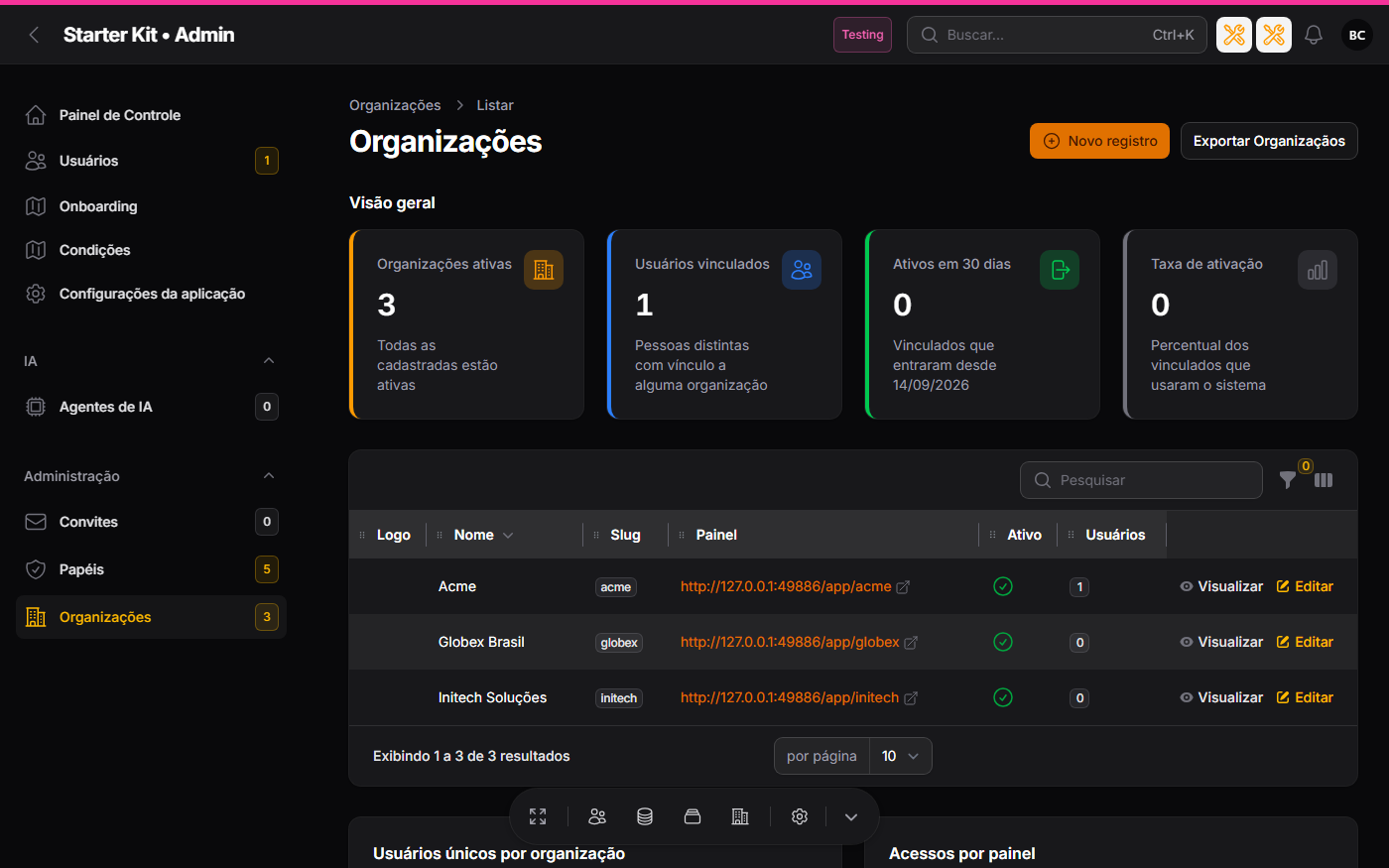
The dock follows the panel theme with no configuration: when the panel is in dark mode, the dock surface, its items and the slideover use the dark colours, including when dark mode is chosen in the panel itself while the operating system is in light mode. All four style options have a dark variant. The images on this page show both themes side by side.
Configuration
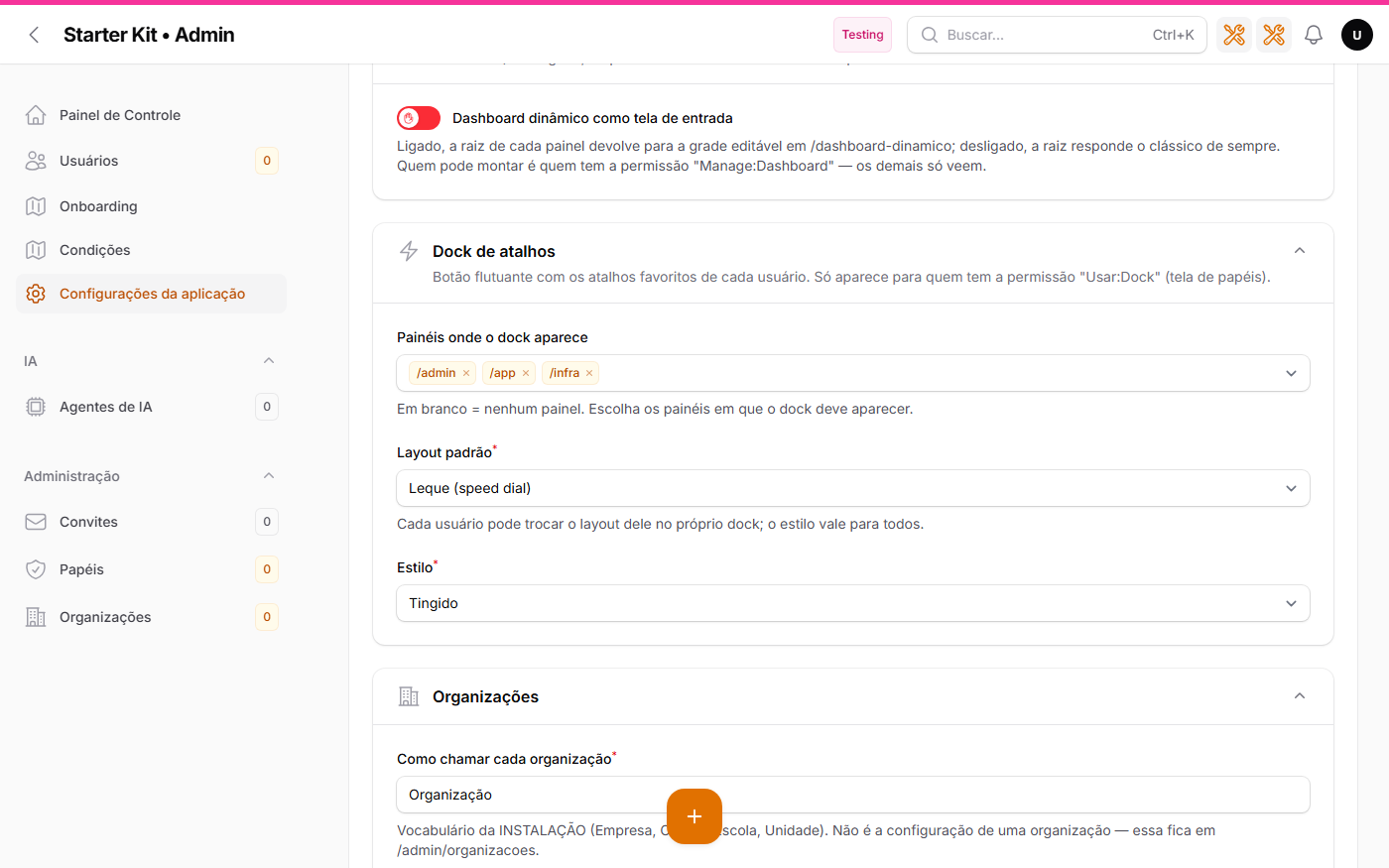
In the Aplicação tab of /admin/configuracoes-da-aplicacao, the Dock de atalhos section:
| Option | What it sets | Born |
|---|---|---|
| Panels where the dock appears | the panels (admin, app, infra) where the dock appears | none |
| Default layout | Leque (speed dial) or Barra; each user can change their own |
Leque (speed dial) |
| Style | Nativo, Contorno, Contraste or Tingido; applies to everyone |
Nativo |
The panel list is seeded by the KIT_DOCK_PAINEIS variable (comma-separated ids, in
config/kit.php → dock.paineis), empty in .env.example. Empty means no panel. Layout and
style have no variable. As in the rest of the tab, the database wins over .env. Who sees the
dock is still decided by the Usar:Dock permission, not by this section. More in
Kit settings.
Cost per request
Reading the settings adds no database query per request to decide whether the dock shows up or
how it looks. Per favourite, the only query allowed is the authorisation of the screen
itself (Gate::before → User::isMasterGlobal()), the same as each sidebar item.
FAQ
The dock does not show up. Check, in this order: (1) is the panel ticked in Panels where the
dock appears? None is ticked out of the box; (2) does your role have the Usar:Dock permission?
panel_user does not get it by default.
A favourite vanished. It is a hidden favourite: you lost access to its panel, screen or organisation. It stays saved and comes back if access returns. If it belonged to a deleted organisation, it is discarded when the slideover is saved.
I cannot add more. The limit is 10 favourites per user, hidden ones included; remove one in the slideover.
I do not see “Add this page”. It only shows on a Resource’s list page or a standalone Page, and not when the page is already a favourite.
Out of scope
The dock does not run code (form, modal, confirmation): it only opens destination URLs. The dock’s position and dragging are already kept per user in the browser by the package.